
User Management
The Users module gives administrators full control over who can access Xenvio and what they can do. Invite users, assign roles and facilities, and activate or deactivate accounts — all from a single screen.
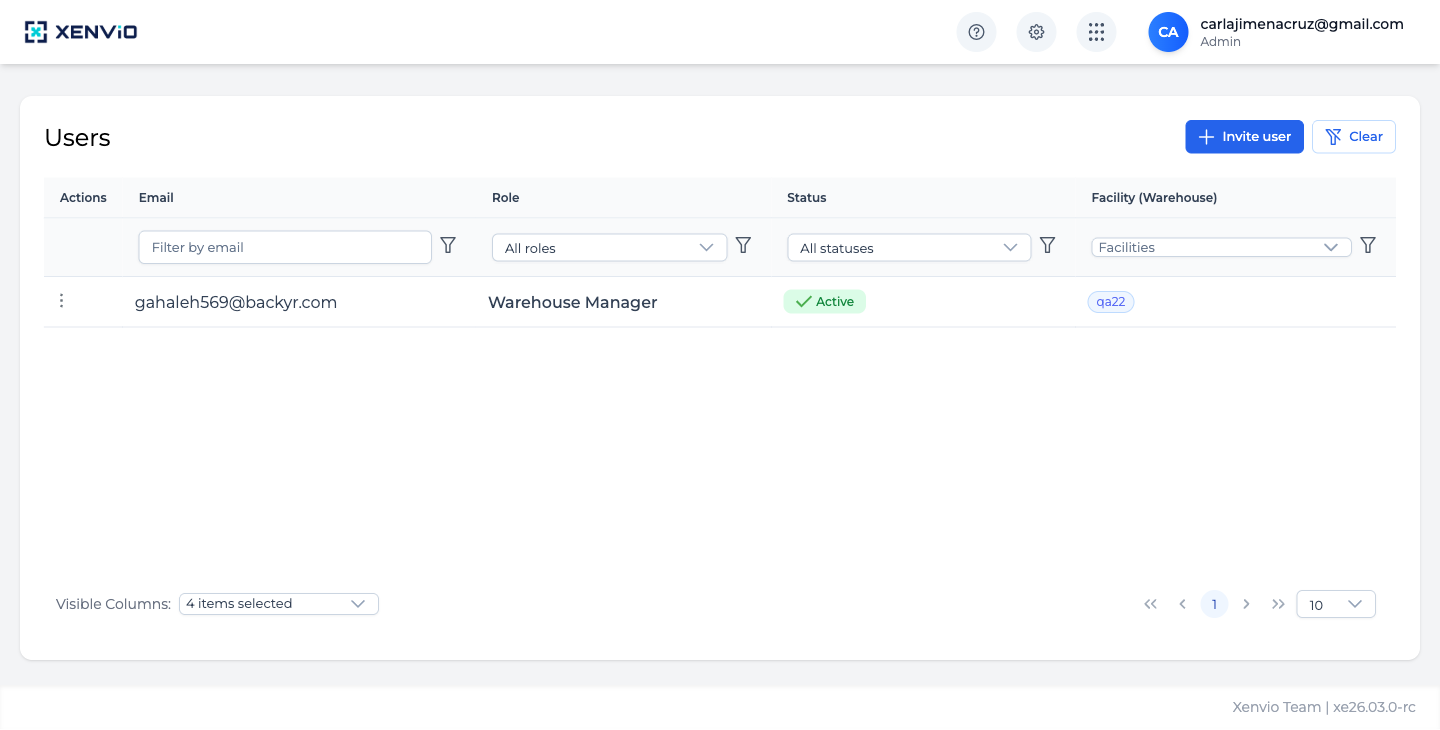
View all users with Email, Role, Status and Facility columns. Use column filters to find users quickly. Only visible to Admin users.
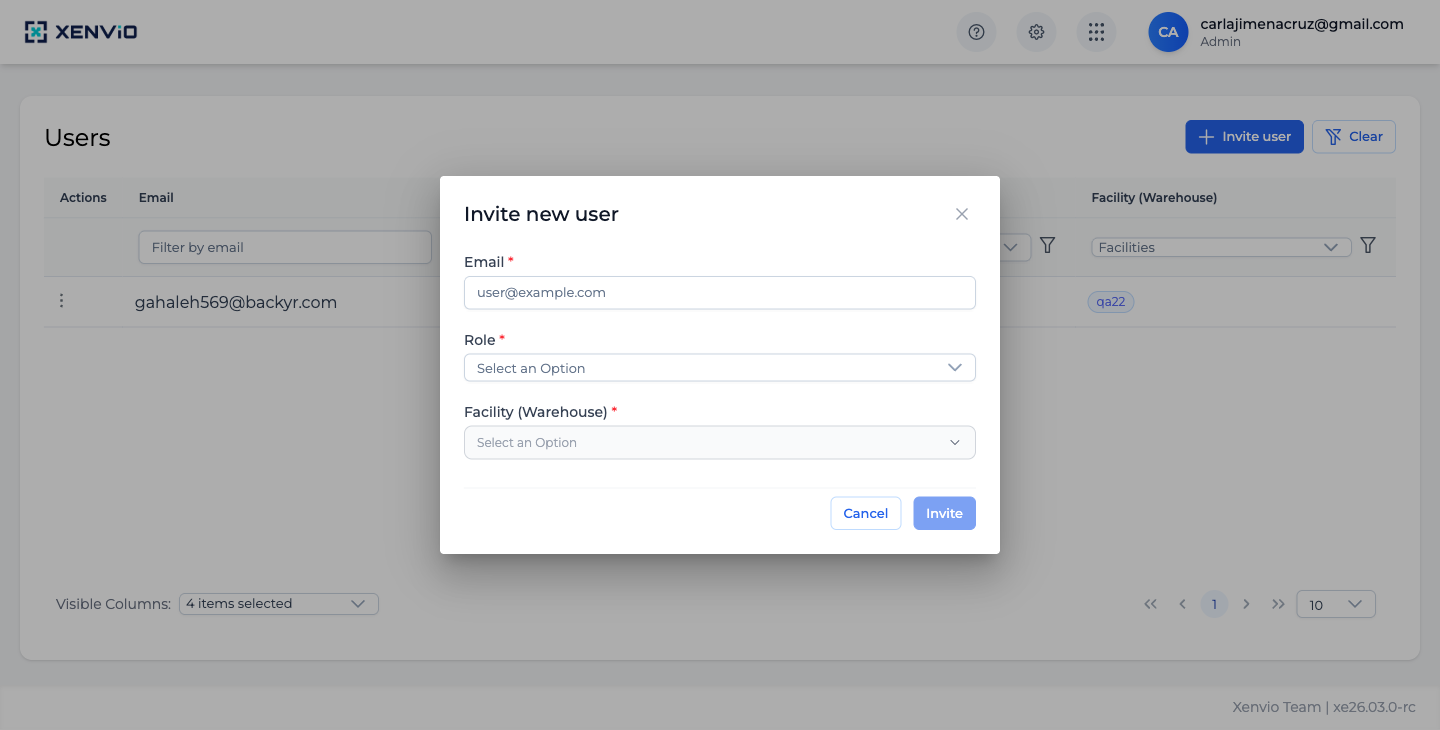
Click '+ Invite user'. The modal prompts for Email, Role, and Facility (Warehouse). The user will receive an invitation email to activate their account.
Demo completed!
1. Access Users
Section titled “1. Access Users”Click ⚙ → Users. You’ll see the user table with filters for Email, Role, Status and Facility.
2. Invite a new user
Section titled “2. Invite a new user”Click + Invite user and fill in the modal:
- Email (required): User’s email address
- Role (required): Select the role based on the permissions needed
- Facility (Warehouse) (required): Facility/warehouse assigned to the user
Click Invite — the user will receive an invitation email.
Available Roles
Section titled “Available Roles”| Role | Permissions |
|---|---|
| Admin | Full access: configuration, users, carriers, facilities |
| Warehouse Manager | Shipment management, carriers and assigned facilities |
| Regular | Shipment processing in Shipper View only |
Only Admin users can access the user management module. If someone on your team needs access, contact the account administrator.