

Shipment Details
Shipment Details is the complete shipment management screen inside Shipper View. Here you can review and edit order boxes and SKUs, apply cubing to optimize box dimensions, configure the carrier, run Quality Control, and proceed to Get Rates or Get Labels.
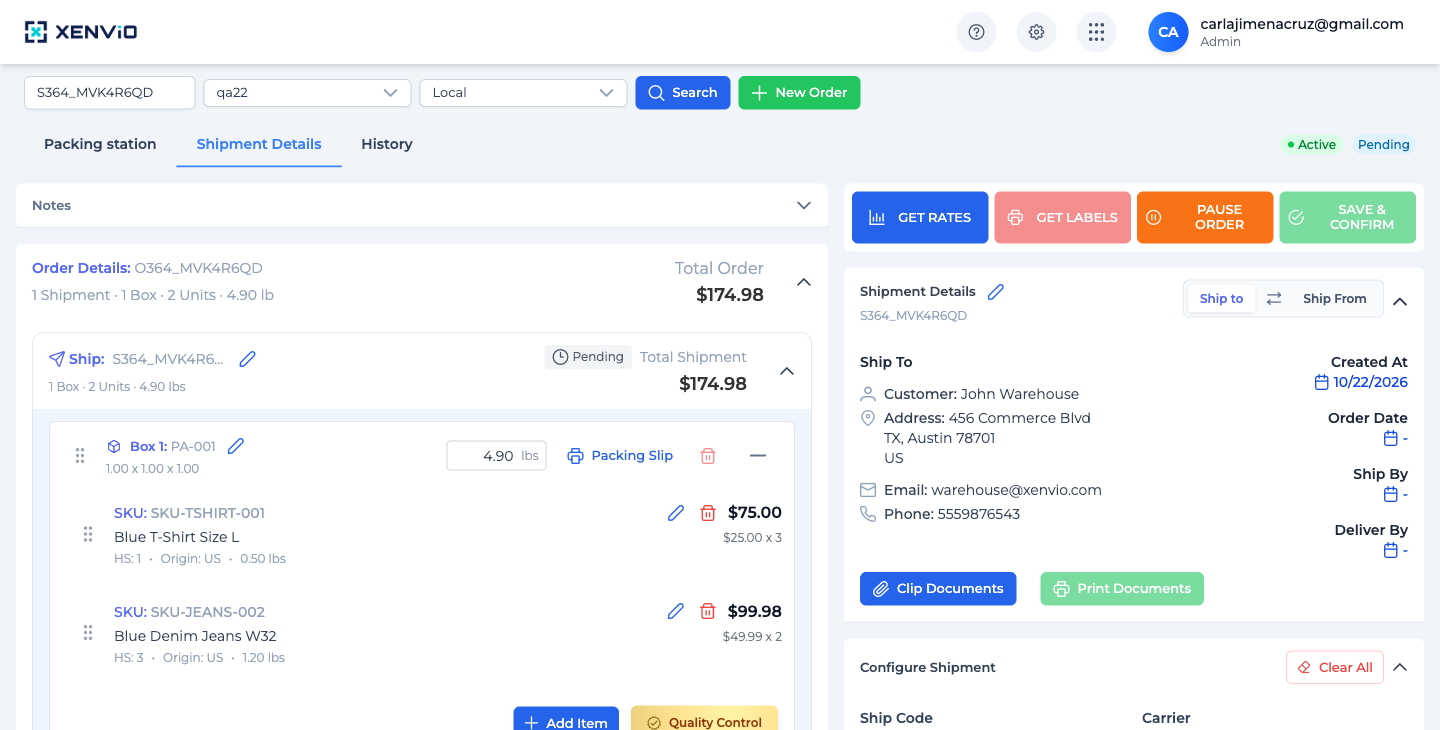
Shipment Details is split into two zones: Left (Order Details with boxes and SKUs, + Add Item, Quality Control, + Add Box, + Add New Shipment) and Right (Ship to/From, Clip/Print Documents, Configure Shipment). Top bar: GET RATES, GET LABELS, PAUSE ORDER, SAVE & CONFIRM.
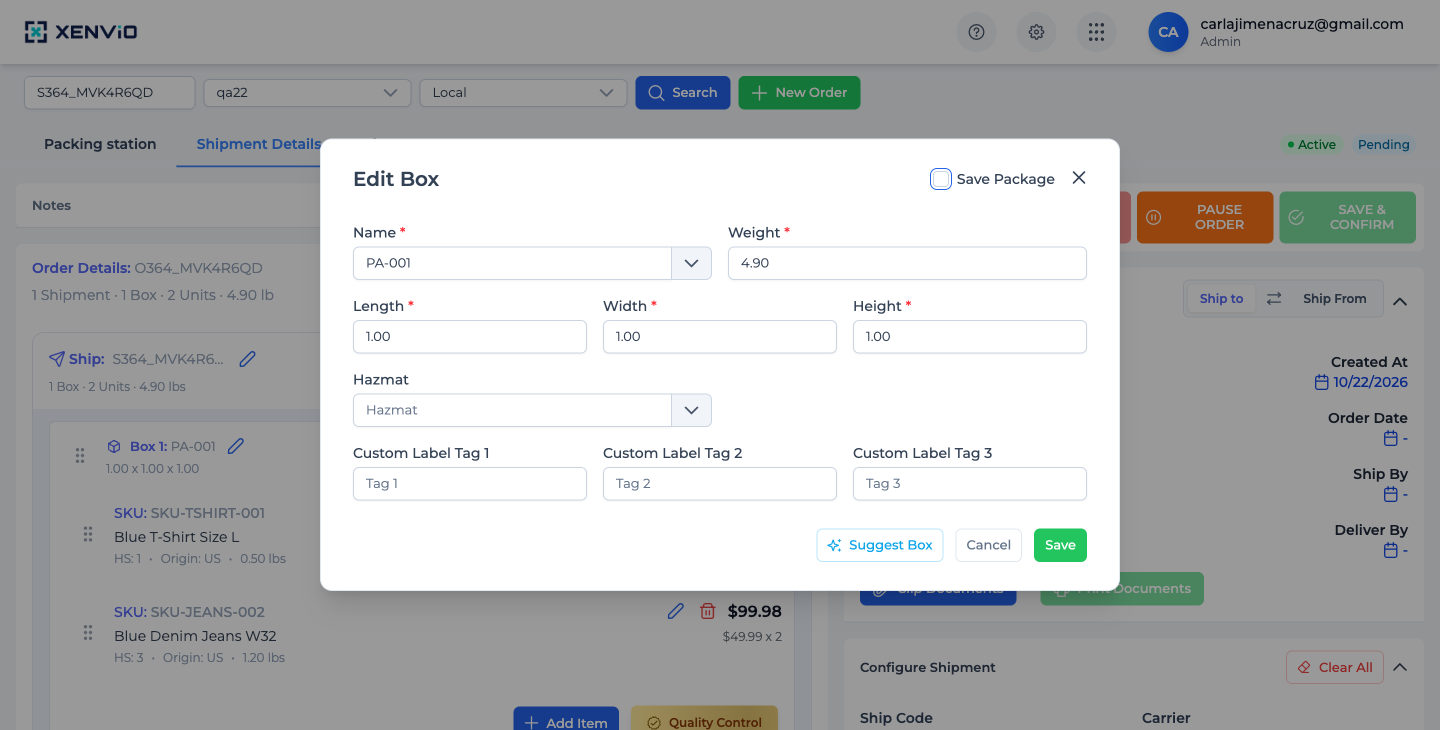
Click the ✏️ icon next to the Box name to open the 'Edit Box' modal. Fields: Name (packaging), Weight, Length, Width, Height, Hazmat and Custom Label Tags 1/2/3. The ✨ Suggest Box button runs the cubing algorithm.
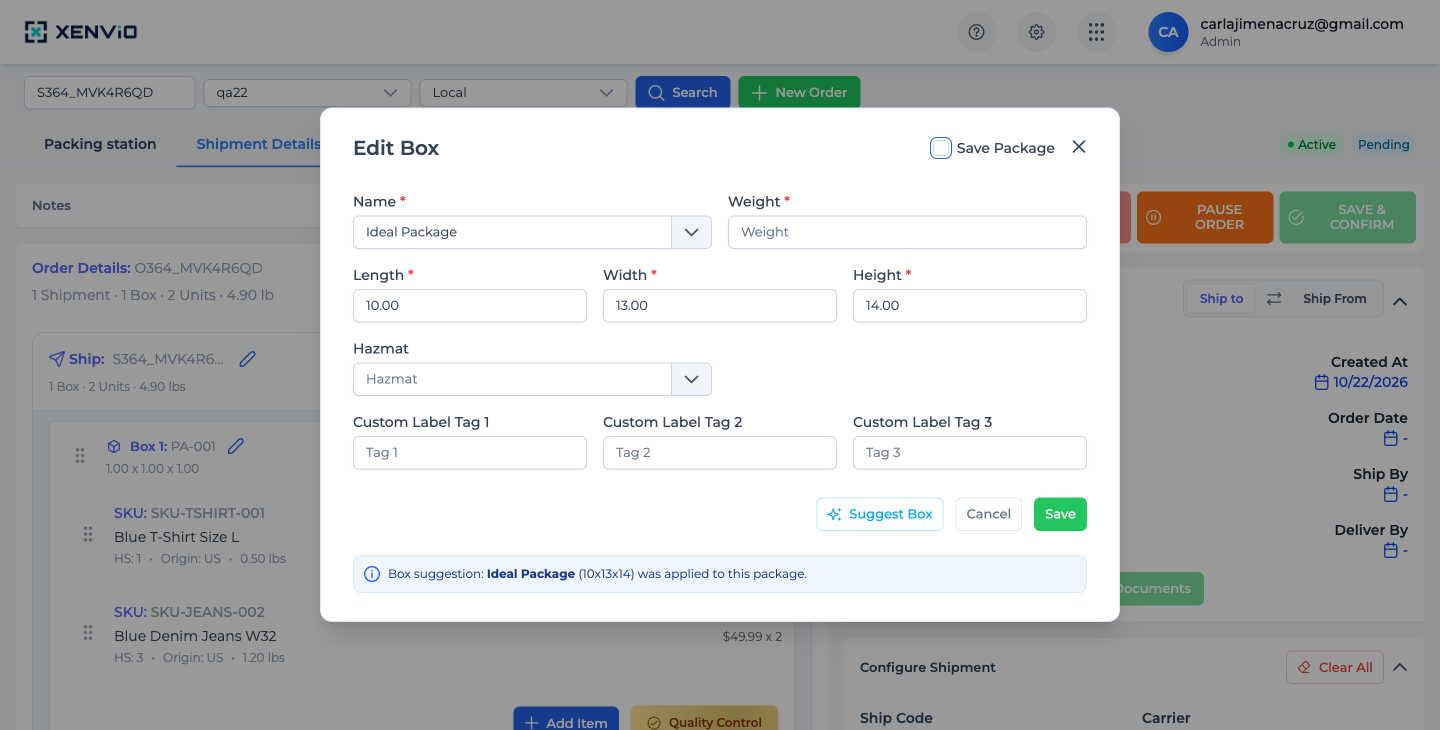
Suggest Box analyzes the dimensions (L × W × H) and weight of all items in the box and suggests the smallest-volume box that fits them all. Result: 'Ideal Package (10x13x14) was applied'. Dimensions update automatically.
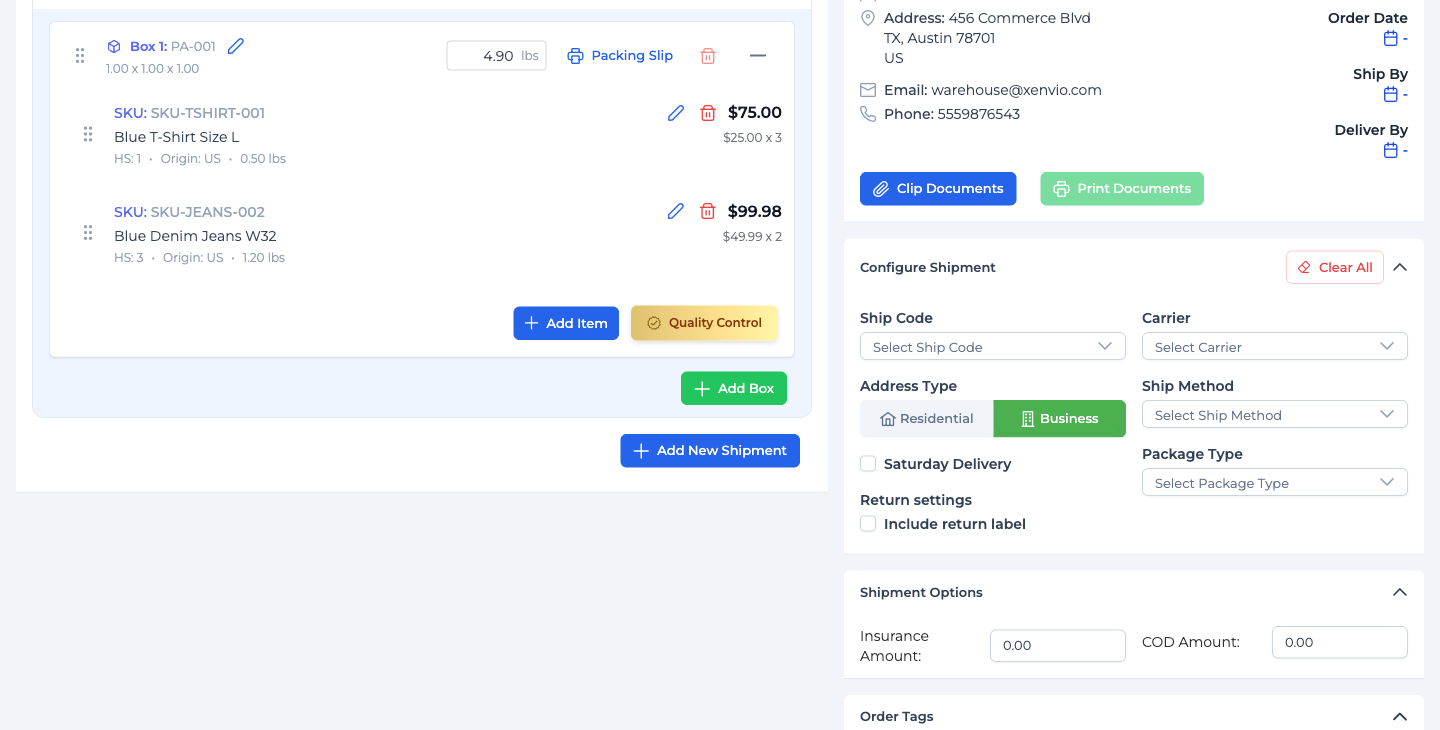
Right panel: Ship Code, Carrier, Address Type (Residential / Business), Ship Method, Package Type, Saturday Delivery, Return settings (Include return label), Insurance Amount, COD Amount and Order Tags.
Demo completed!
How to access Shipment Details
Section titled “How to access Shipment Details”From Shipper View, once the order is loaded, click the Shipment Details tab.
You can also reach it automatically by clicking Shipping → from the Packing Station.
Left Zone — Order Details
Section titled “Left Zone — Order Details”Shows the complete order tree:
| Level | Contains |
|---|---|
| Order | Order code, total units, weight, total value |
| Shipment | Shipment ID, status (Pending/Active), subtotal |
| Box | Packaging type, dimensions, weight, Packing Slip, ✏️ Edit Box button |
| SKU | Code, description, HS, origin, weight, price × quantity |
Available actions per box:
- ✏️ Edit Box → opens modal with cubing (Suggest Box)
- 🖨️ Packing Slip → prints the item list for the box
- 🗑️ Delete Box (if no items)
- + Add Item → adds a SKU to the box
- ✅ Quality Control → verifies box packing
Shipment-level actions:
- + Add Box → adds a new box to the shipment
- + Add New Shipment → splits the order into a new shipment
Cubing — Suggest Box
Section titled “Cubing — Suggest Box”Cubing calculates the optimal box based on the actual dimensions of the items inside.
How to use it:
- Click the ✏️ icon next to the Box name (e.g. “Box 1: PA-001”)
- In the Edit Box modal, click ✨ Suggest Box
- The system analyzes all item dimensions and calculates the minimum-volume box
The result appears as a blue message at the bottom of the modal:
“Box suggestion: Ideal Package (10x13x14) was applied to this package.”
Dimensions automatically update in the Length / Width / Height fields. Click Save to confirm.
Right Zone — Configure Shipment
Section titled “Right Zone — Configure Shipment”The right panel contains all shipment configuration before getting rates:
| Field | Description |
|---|---|
| Ship To / Ship From | Recipient and sender address (switch with tabs) |
| Clip Documents | Attach documents to the shipment |
| Print Documents | Print associated documents (invoices, etc.) |
| Ship Code | Shipping service code |
| Carrier | Select the carrier |
| Address Type | Residential or Business (affects rates) |
| Ship Method | Carrier shipping method |
| Package Type | Carrier package type |
| Saturday Delivery | Enable Saturday delivery (if supported by carrier) |
| Include return label | Generates a return label with the shipment |
| Insurance Amount | Declared insurance value |
| COD Amount | Cash on delivery amount |
| Order Tags | Internal organization tags |
Main Action Buttons
Section titled “Main Action Buttons”| Button | Color | What it does |
|---|---|---|
| GET RATES | 🔵 Blue | Queries and compares rates from all configured carriers |
| GET LABELS | 🔴 Pink | Generates the shipping label (available after selecting a rate) |
| PAUSE ORDER | 🟠 Orange | Pauses shipment processing |
| SAVE & CONFIRM | 🟢 Green | Saves changes and confirms the shipment |