

Best Rate Configuration
The Best Rate feature lets you define automatic carrier selection rules. Create a rule with a name, assign the shipping methods you want to evaluate, and Xenvio will pre-select the best match automatically every time you run Get Rates in Shipper View.
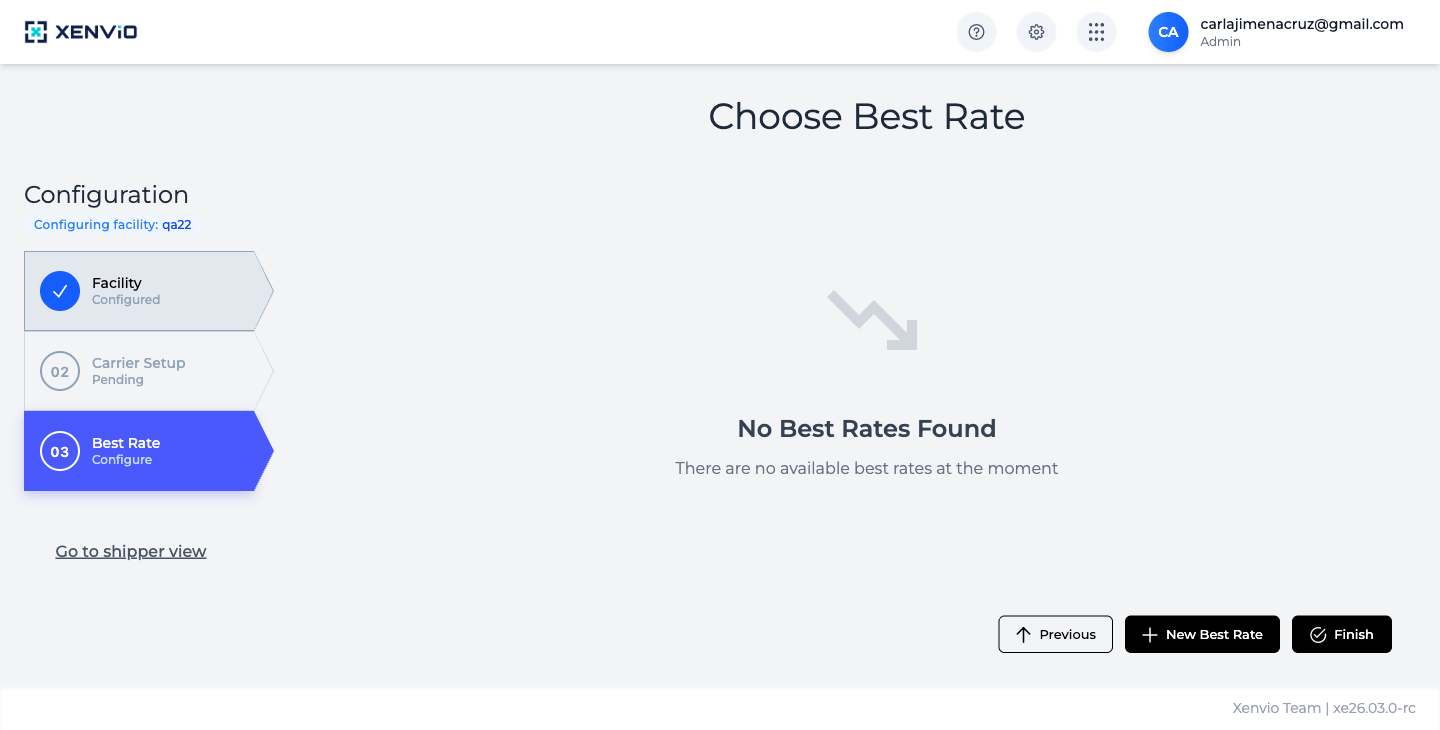
Reach Step 3 of the wizard. If no rules exist yet you'll see 'No Best Rates Found'. Click '+ New Best Rate' to create your first rule.
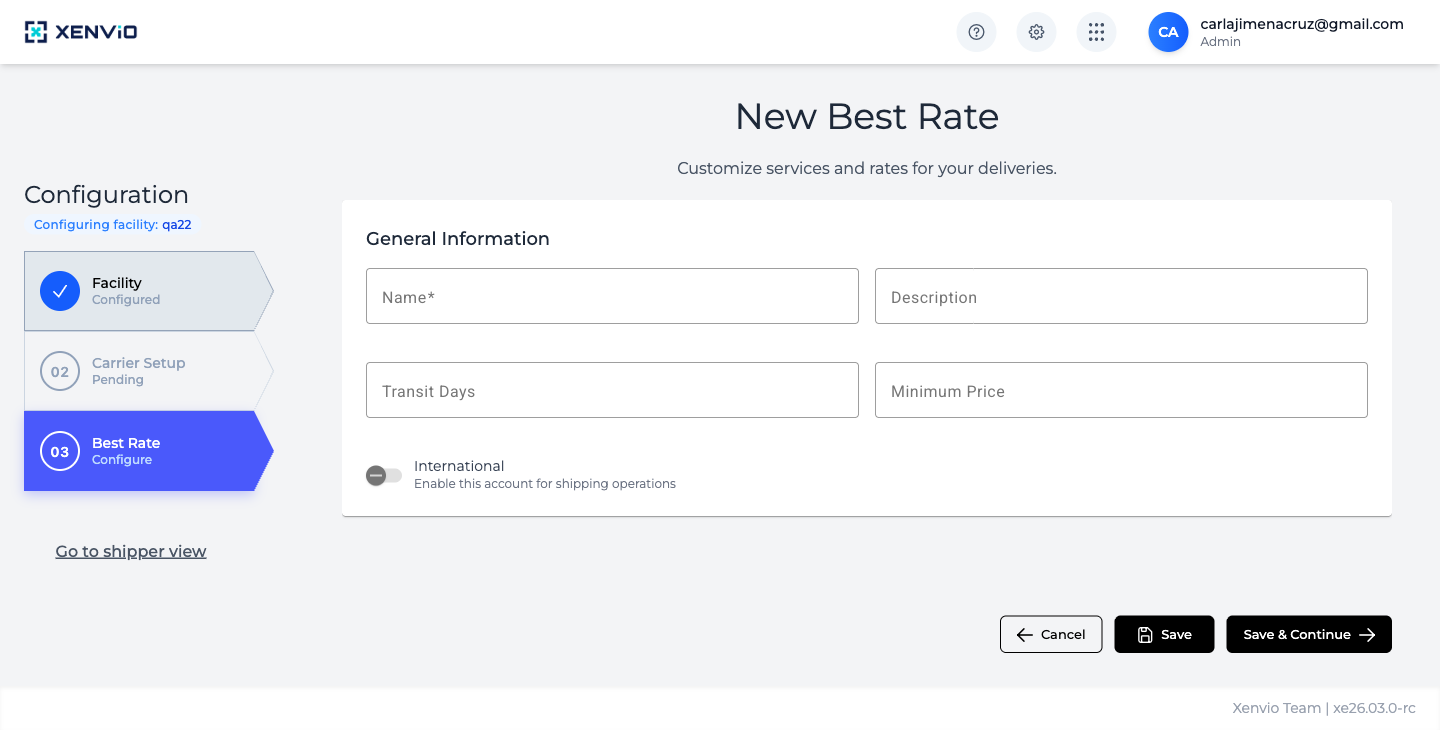
Fill in the rule name (required), optional description, max transit days and minimum price. Toggle 'International' if the rule applies to international shipments.
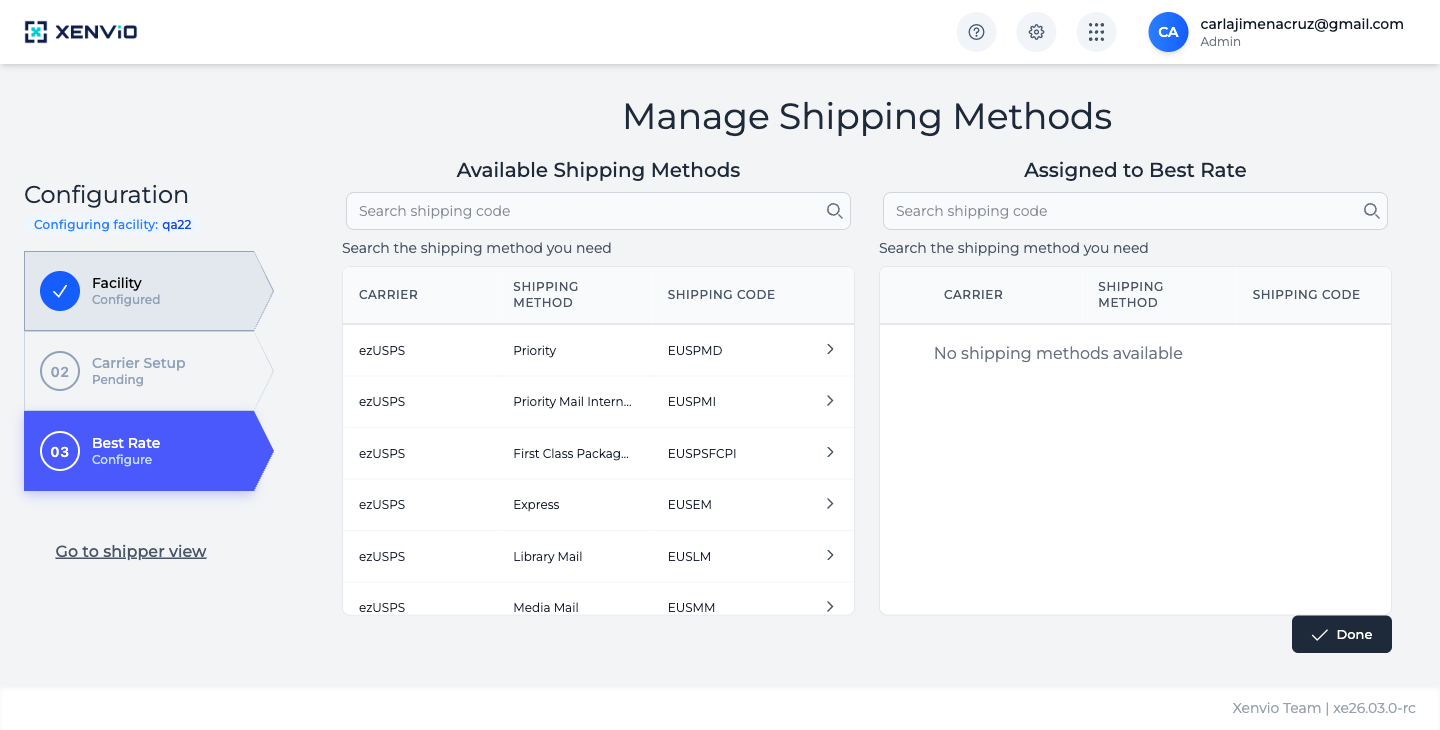
Under 'Available Shipping Methods' you'll see all methods from your configured carriers. Click '>' on each method you want to include in this Best Rate rule.
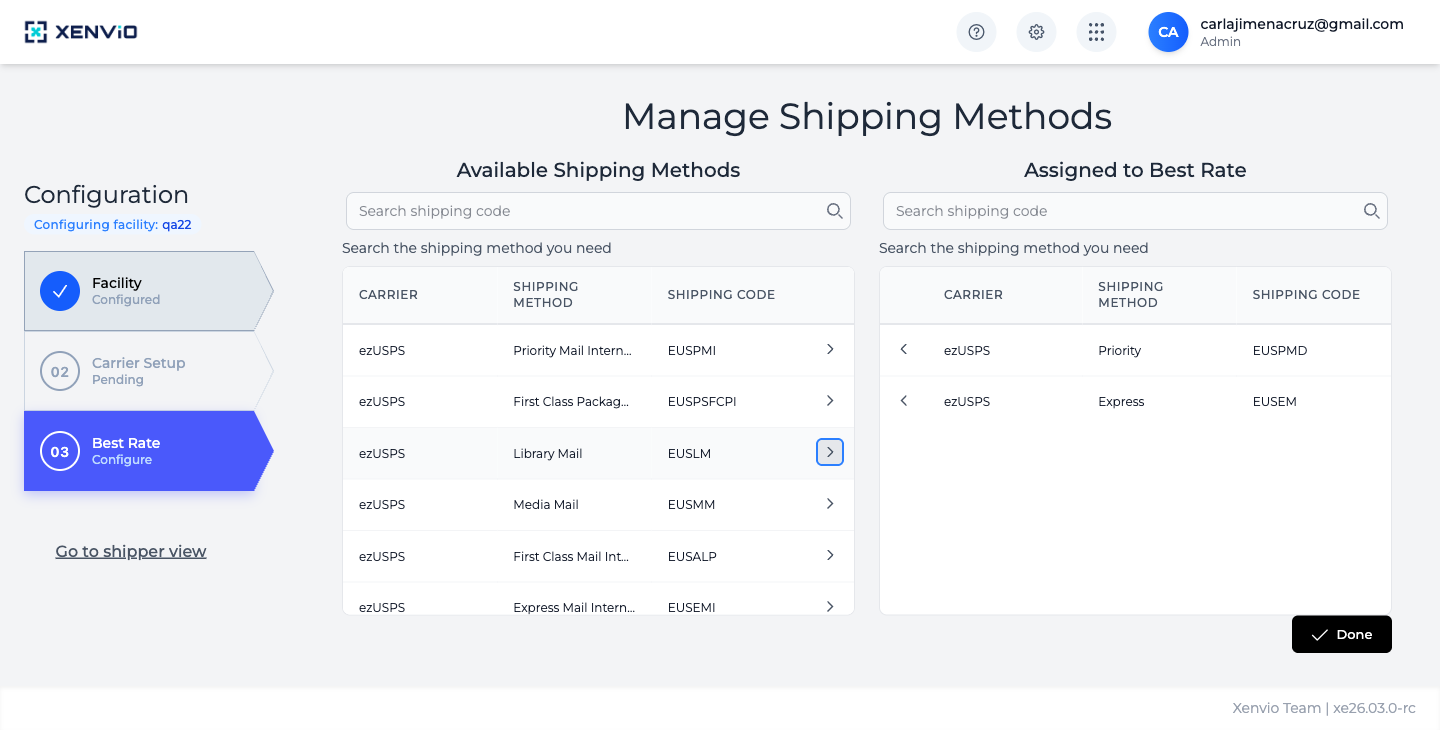
Assigned methods appear in the 'Assigned to Best Rate' column on the right. Click '<' to remove a method. When finished, click 'Done'.
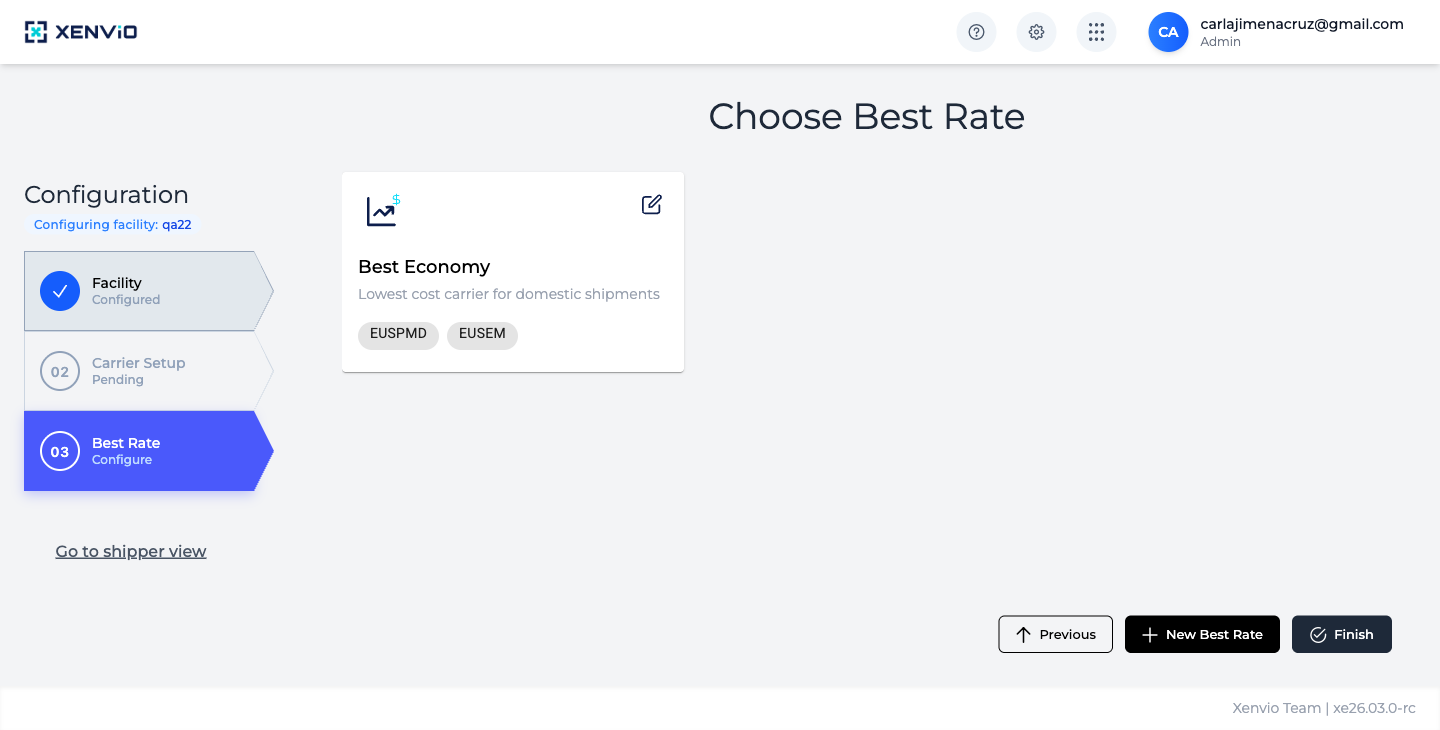
The rule appears as a card showing its name, description and assigned Shipping Codes (e.g. EUSPMD, EUSEM). Create more rules or click 'Finish' to activate Best Rate.
Demo completed!
1. Access Best Rate
Section titled “1. Access Best Rate”Click ⚙ → Configuration → step 03 Best Rate.
2. Create a new rule
Section titled “2. Create a new rule”Click + New Best Rate and fill in:
- Name (required): Identifying name for the rule (e.g. “Best Economy”)
- Description: Purpose of the rule
- Transit Days: Maximum acceptable transit days
- Minimum Price: Minimum rate threshold
- International: Enable if the rule applies to international shipments
Click Save & Continue to proceed to shipping method assignment.
3. Assign Shipping Methods
Section titled “3. Assign Shipping Methods”The Manage Shipping Methods screen shows two columns:
- Available Shipping Methods: All methods from your configured carriers
- Assigned to Best Rate: The methods this rule will evaluate
Click > on each method you want to include. To remove one from the assigned list, click <.
Click Done when finished.
4. Result — Active Rule
Section titled “4. Result — Active Rule”The created rule appears as a card showing its name, description and assigned Shipping Codes. Create more rules if needed, or click Finish to activate Best Rate for your facility.