

Address Book
The Address Book is your central repository of frequent recipients. Save an address once and Xenvio auto-fills the Ship To form every time you create a new order — less data entry, fewer typos.
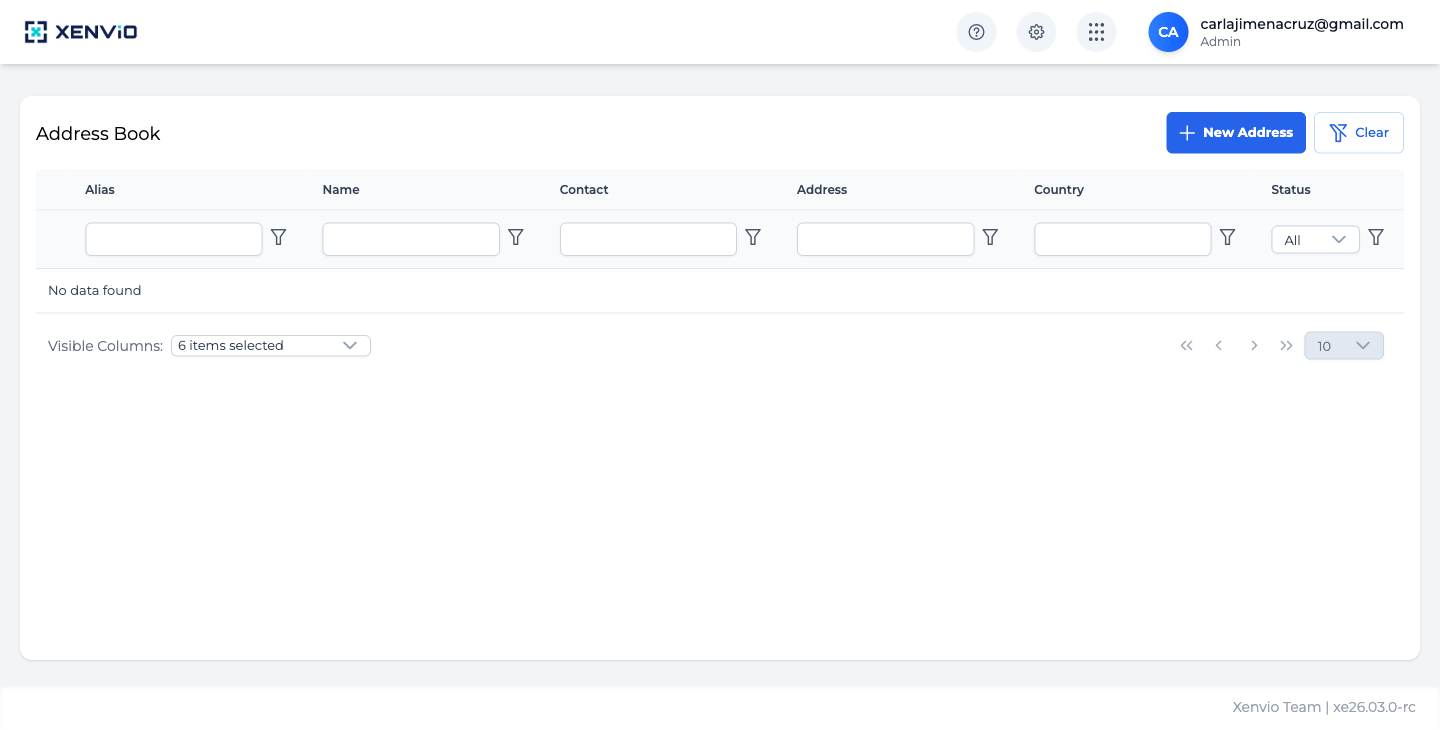
Table with all saved addresses: Alias, Name, Contact, Address, Country and Status. Use column filters to search quickly. Click '+ New Address' to add one.
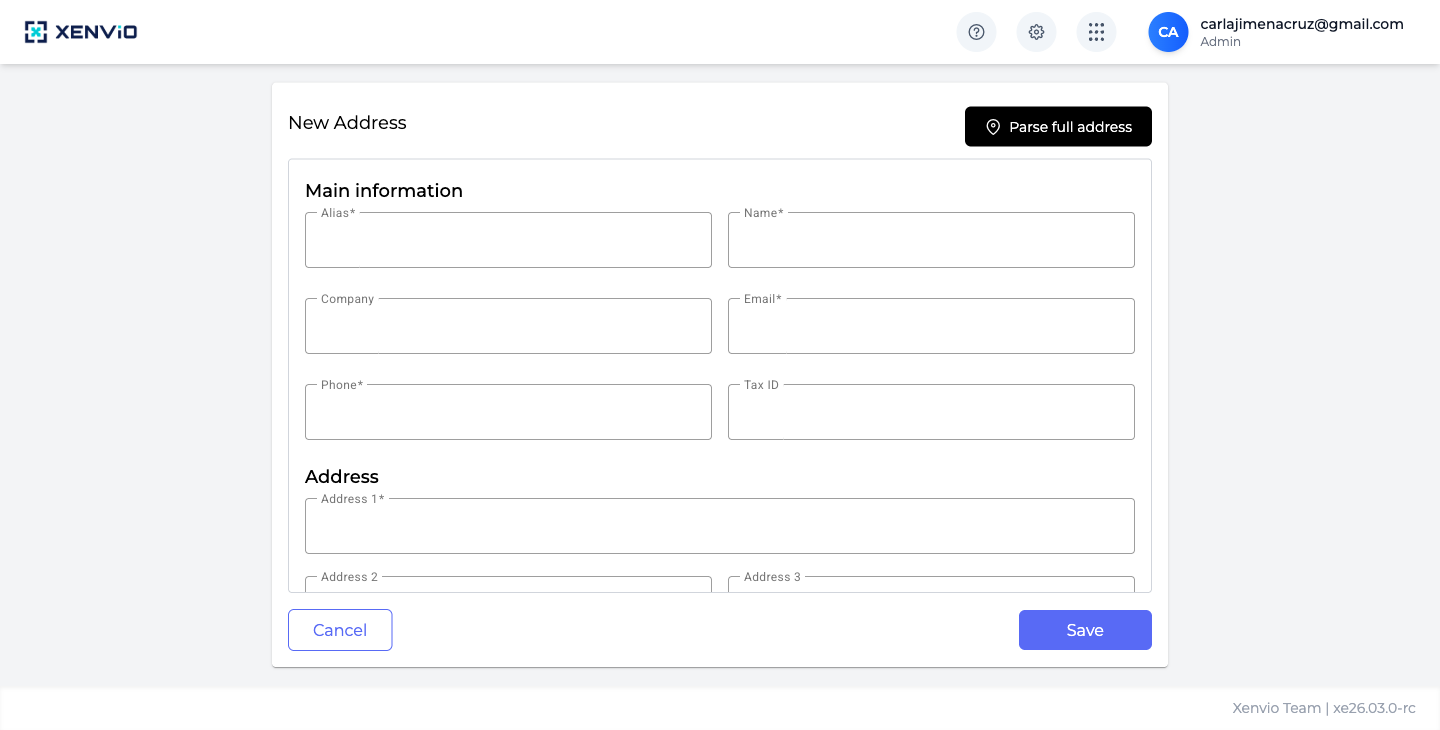
The form has two sections: Main Information (Alias*, Name*, Company, Email*, Phone*, Tax ID) and Address (Address 1*, 2, 3, etc.). Use 'Parse full address' to auto-fill by pasting a complete address.
Demo completed!
1. Access Address Book
Section titled “1. Access Address Book”Click ⚙ → Address Book. You’ll see the table with all saved addresses: Alias, Name, Contact, Address, Country, and Status.
2. New Address
Section titled “2. New Address”Click + New Address and fill in the two-section form:
Main Information:
- Alias (required): Short identifier for the address (e.g. “Home Office”)
- Name (required): Full recipient name
- Company: Recipient’s company
- Email (required): Email address
- Phone (required): Contact phone number
- Tax ID: Tax identification (for international shipments)
Address:
- Address 1 (required): Primary address line
- Address 2/3: Additional info (suite, floor, etc.)
- City, State, Country, Zip
Tip: Use Parse full address — paste a complete address and Xenvio automatically splits it into individual fields.
Click Save to store the address.