

Create an Account
To access Xenvio you need an SSO (Single Sign-On) account. Registration is done directly from the login page — no installation or support contact needed to create your account.
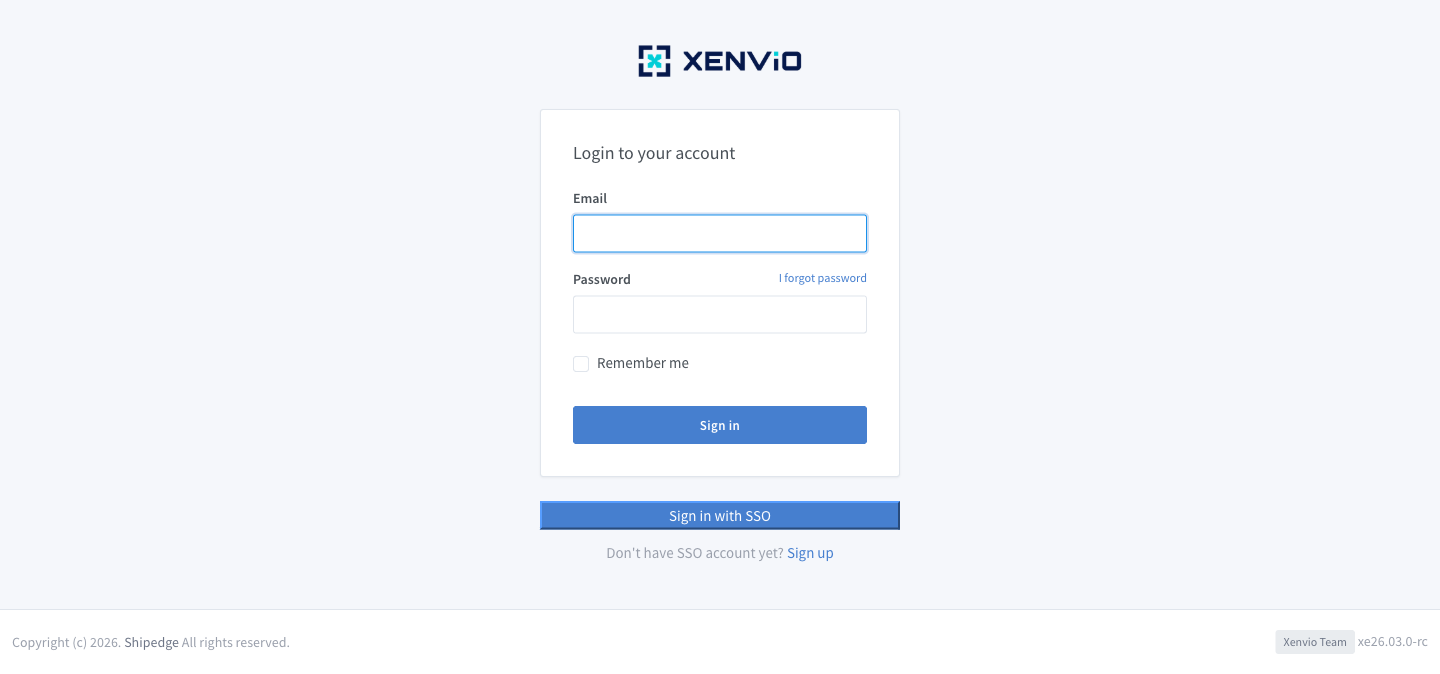
On the Xenvio login page you'll find the 'Sign in with SSO' button and below it the link 'Don't have SSO account yet? Sign up'. Click 'Sign up' to create your account.
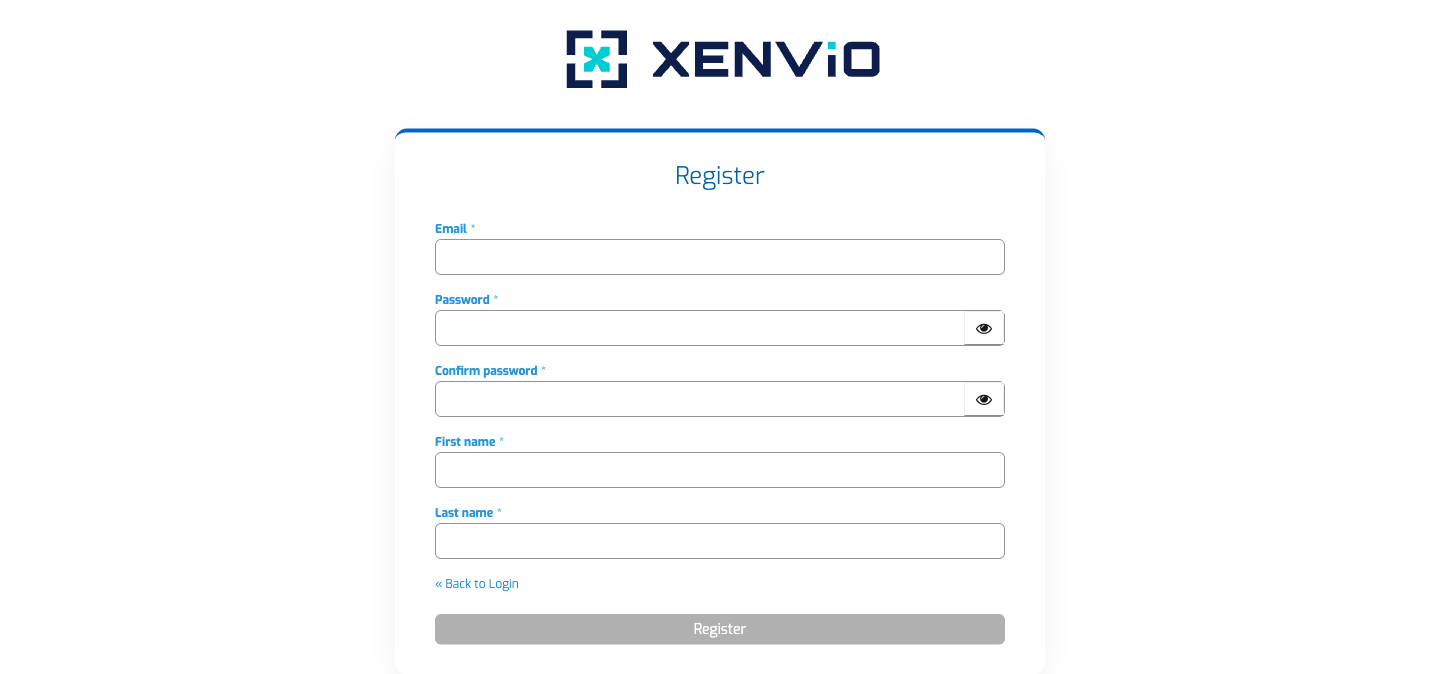
Fill in the registration form: Email*, Password*, Confirm password*, First name* and Last name*. All fields are required. Click 'Register' to create your account.
Demo completed!
1. Go to the login page
Section titled “1. Go to the login page”Open https://x52.shipedge.com in your browser. You’ll be automatically redirected to the sign-in screen.
2. Click “Sign up”
Section titled “2. Click “Sign up””Below the Sign in with SSO button you’ll see:
Don’t have SSO account yet? Sign up
Click Sign up — you’ll be redirected to the Xenvio SSO portal.
3. Complete the registration form
Section titled “3. Complete the registration form”On the SSO portal, fill in the following fields — all are required:
| Field | Description |
|---|---|
| Your email address (this will be your username) | |
| Password | Secure password (minimum 8 characters) |
| Confirm password | Repeat the password to confirm |
| First name | Your first name |
| Last name | Your last name |
Click Register to create your account.
4. Access Xenvio
Section titled “4. Access Xenvio”Once registered, the system will automatically redirect you to Xenvio. On your next login, use Sign in with SSO and enter the email and password from the previous step.
Access to Xenvio requires an administrator to activate your account and assign the correct permissions. If you see an error after registering, contact your organization’s administrator to activate your user.