

Packing Station
The Packing Station is the dedicated packing workspace inside Shipper View. It lets warehouse operators load an order by Shipment ID, view all pending SKUs, scan them into physical boxes, confirm the final weight, and send the order to the next shipping step.
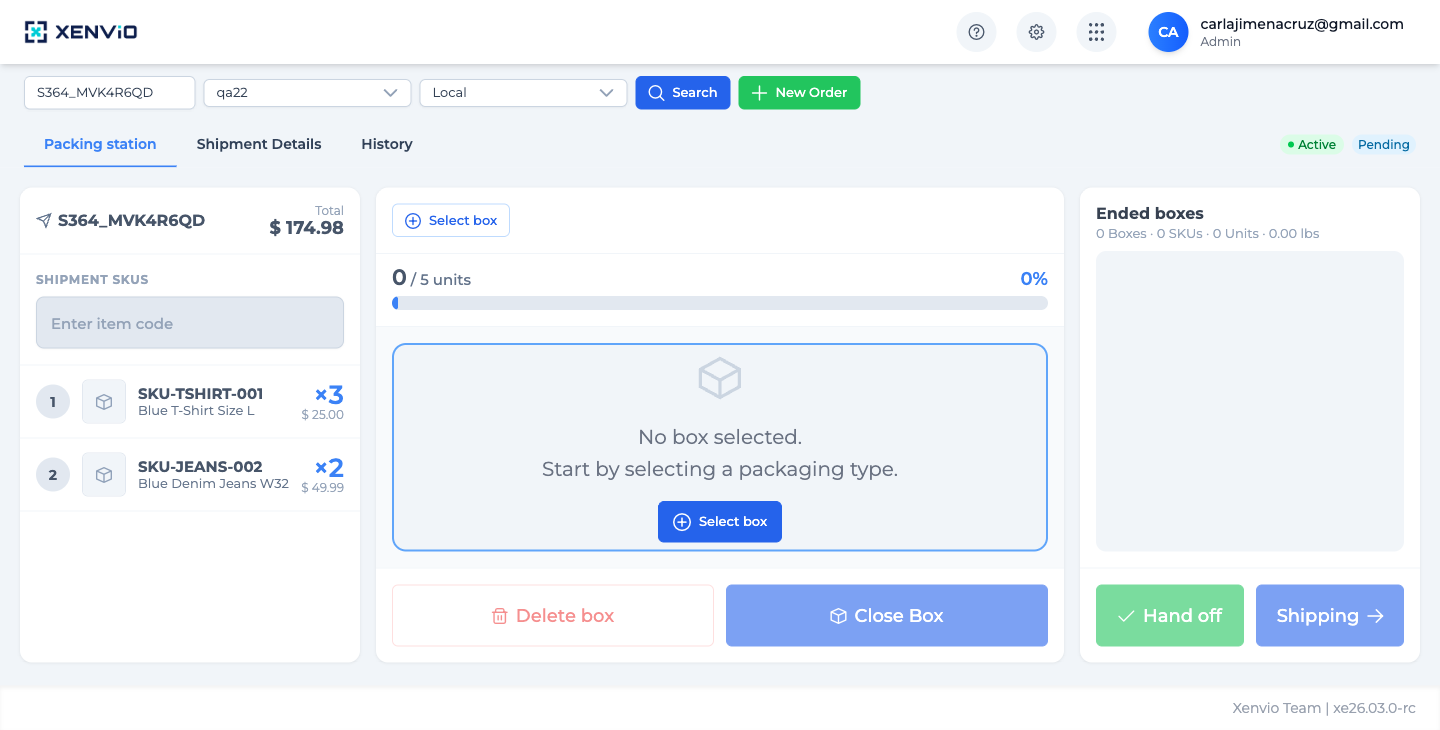
The Packing Station has 3 panels: Left (SHIPMENT SKUs pending packing), Center (active box + progress bar 0/5 · 0%), Right (Ended boxes). Key action buttons at the bottom: Delete box | Close Box | Hand off | Shipping →
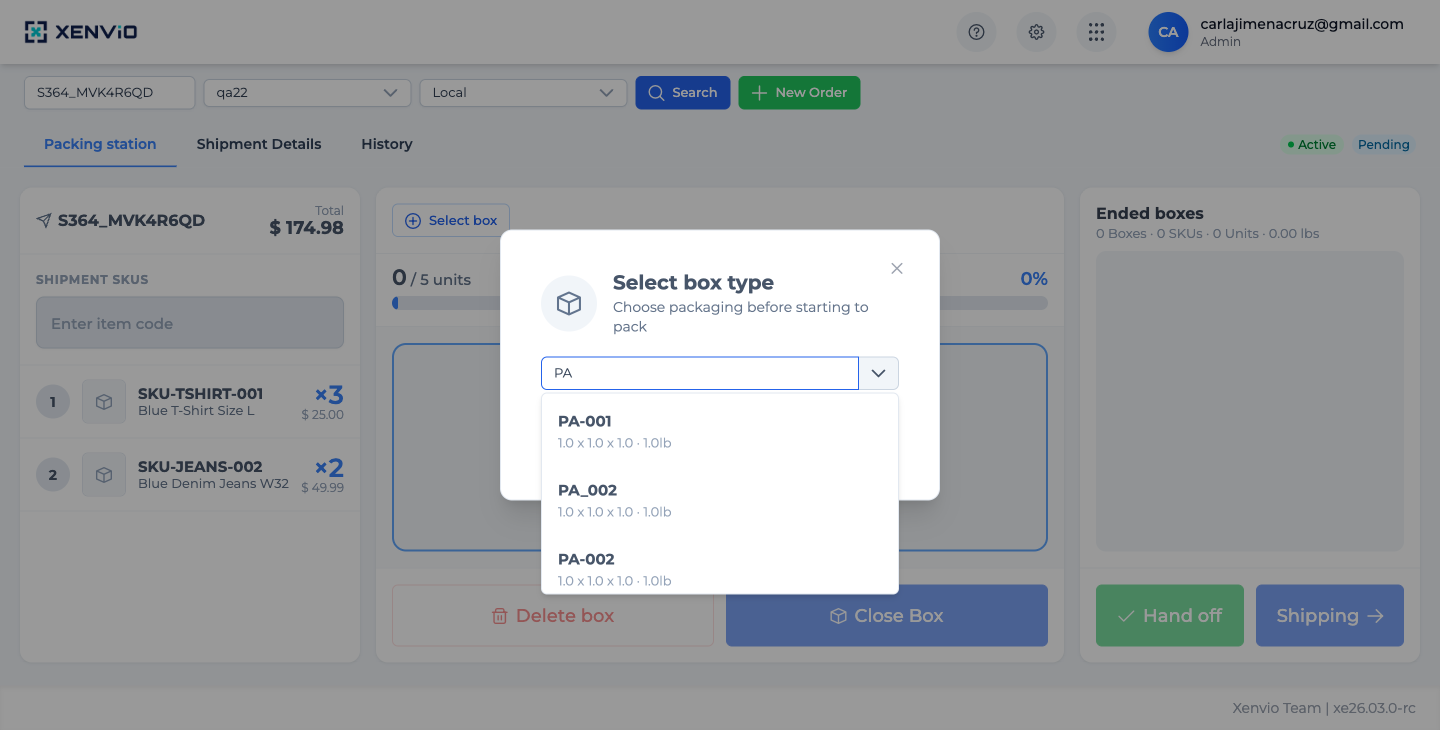
Click '+ Select box' to open the 'Select box type' modal. Type the package code (e.g. PA) to filter catalog options. Available packages show: code, dimensions and max weight.
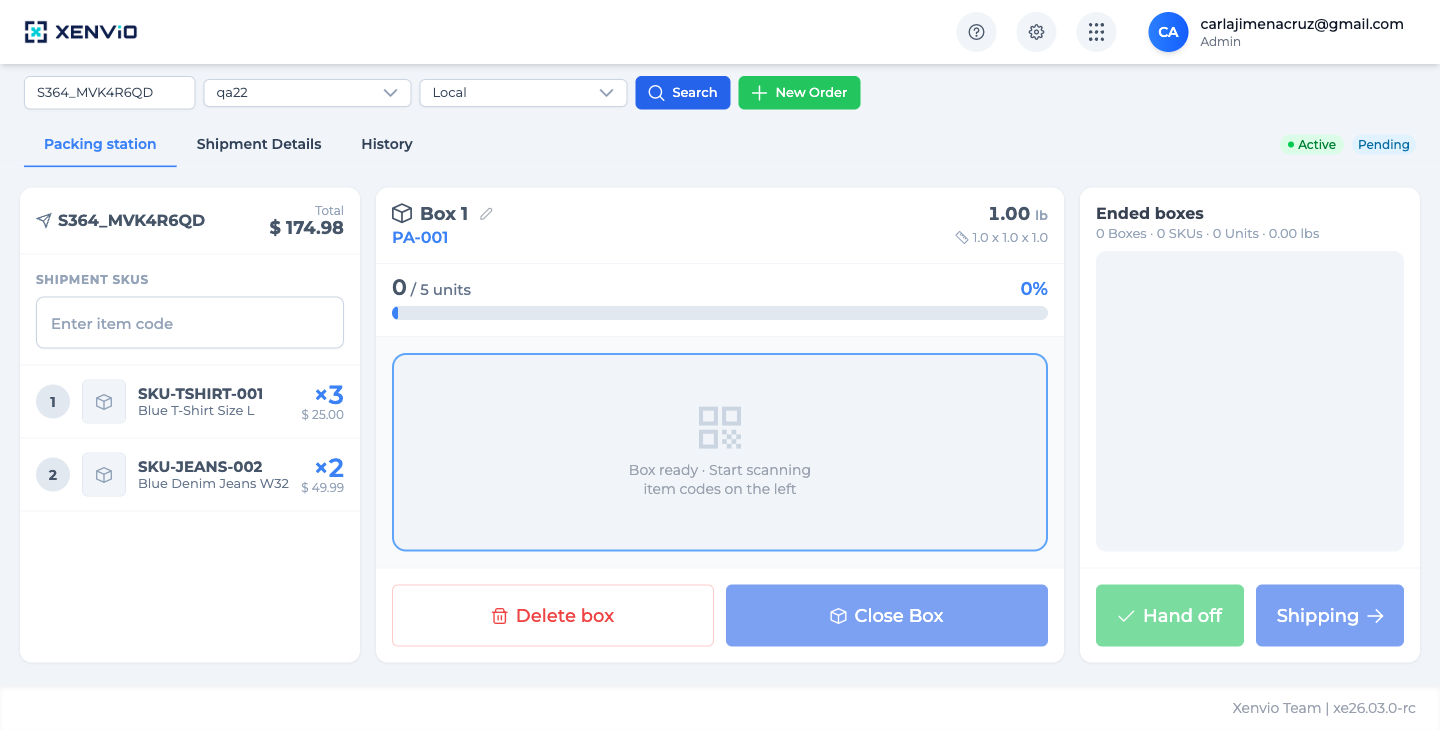
With the box confirmed, the center panel shows 'Box ready · Start scanning item codes on the left'. The ✏️ icon next to 'Box 1' lets you change the box type if needed before scanning items.
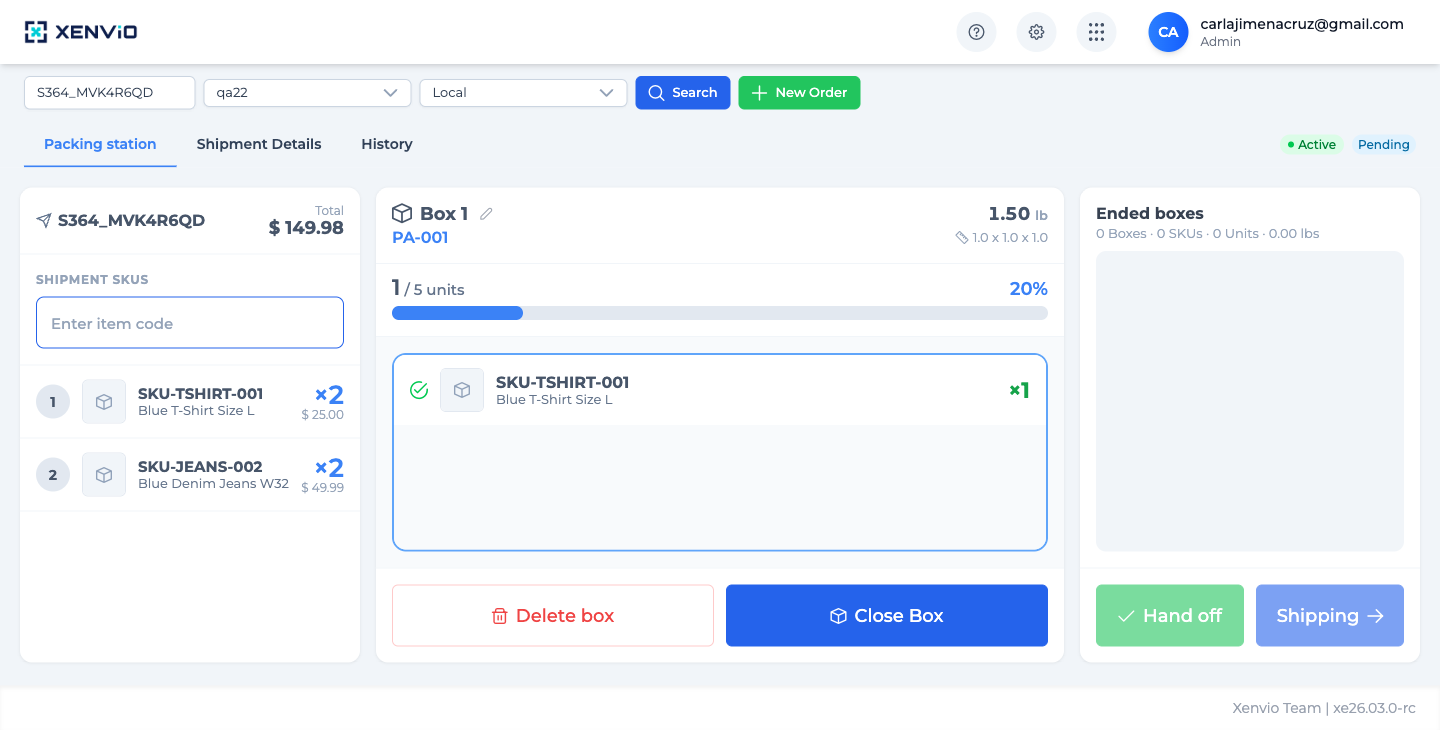
Enter the SKU code in 'Enter item code' and press Enter (or use a physical scanner). The bar advances (1/5 · 20%), the item appears with ✅ in the box, and the pending SKU count decreases.
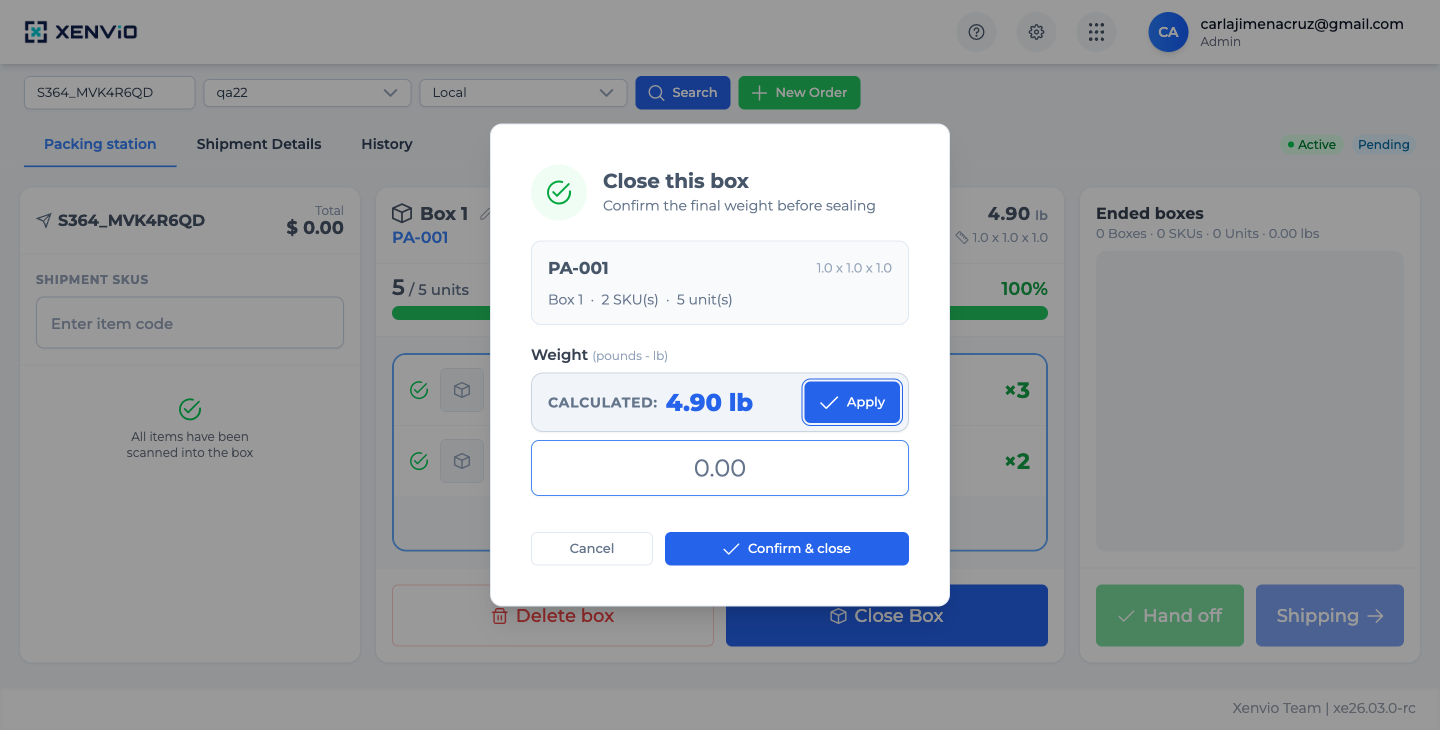
When 100% is reached (5/5 units), the system AUTOMATICALLY opens the 'Close this box' modal. Shows: PA-001 · Box 1 · 2 SKUs · 5 units · Calculated weight: 4.90 lb. Apply calculated weight or enter real scale weight. Click 'Confirm & close'.
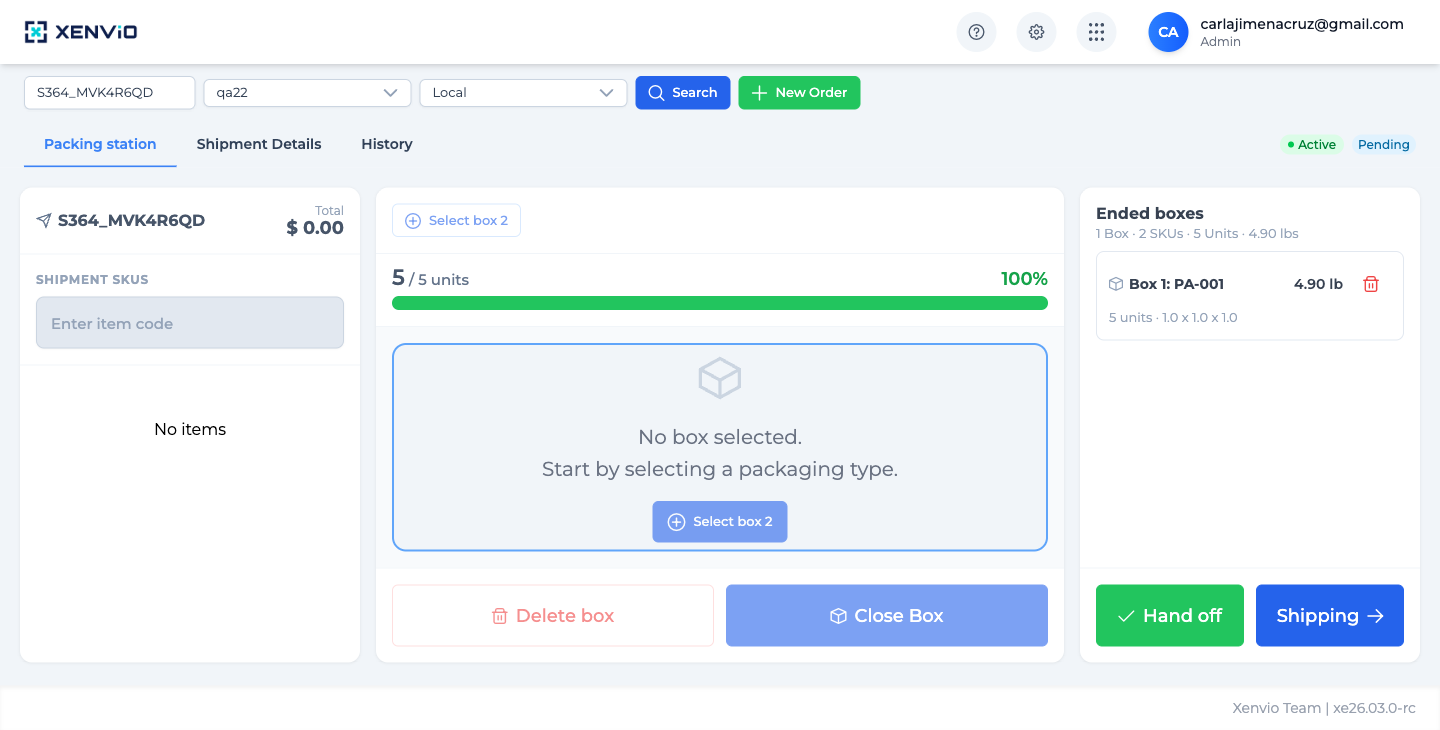
The bar turns fully green at 100%. The closed box appears in 'Ended boxes': Box 1: PA-001 · 4.90 lb · 5 units. Left panel shows 'No items'. Add another box with '+ Select box 2' or finish with Hand off / Shipping →
Demo completed!
1. Access Shipper View and search for the order
Section titled “1. Access Shipper View and search for the order”From the main menu, go to Shipper View, select the Packing station tab and enter the Shipment ID. Verify the Facility and click Search.
2. Understand the interface: 3 panels
Section titled “2. Understand the interface: 3 panels”| Panel | What it shows |
|---|---|
| Left — SHIPMENT SKUs | List of SKUs with pending quantity. “Enter item code” field to scan |
| Center — Active Box | Box name and type, progress bar, SKUs scanned into this box |
| Right — Ended Boxes | Boxes already closed and confirmed with their weight and dimensions |
3. Select the box type
Section titled “3. Select the box type”Click + Select box to open the modal. Type the package code or name (e.g. PA) to filter the catalog:
Select the package and click Confirm. The box appears in the center panel with “Box ready · Start scanning item codes on the left”.
The ✏️ icon next to “Box 1” lets you change the box type at any point before scanning items — it reopens the same “Select box type” modal.
Available packages are configured in the Packaging module. If the dropdown is empty, create the box types there first.
4. Scan items into the box
Section titled “4. Scan items into the box”Enter the SKU code in the “Enter item code” field (or use a physical barcode scanner) and press Enter. For each scan:
- The progress bar advances
- The item appears with ✅ in the active box
- The pending counter for that SKU decreases in the left panel
- The estimated box weight updates
5. Automatic modal at 100%: “Close this box”
Section titled “5. Automatic modal at 100%: “Close this box””When the last item is scanned, the system automatically opens the “Close this box” modal:
The modal shows:
- Box summary: type, number of SKUs and units
- Calculated weight based on declared item weights (e.g.
4.90 lb) - Apply button to use the calculated weight
- Manual input field to enter the actual weight from a scale
- ✓ Confirm & close button to permanently seal the box
6. Box closed — Ended boxes panel
Section titled “6. Box closed — Ended boxes panel”After confirming, the box moves to the “Ended boxes” panel on the right, ready for another box. If items remain, repeat with + Select box 2.
Final Buttons: Hand off and Shipping →
Section titled “Final Buttons: Hand off and Shipping →”| Button | Color | What it does |
|---|---|---|
| ✓ Hand off | 🟢 Green | Marks the order as packed and ready for another operator or station. The order is released from the active Packing Station session. |
| Shipping → | 🔵 Blue | Goes directly to Shipment Details to calculate rates, generate labels, and confirm the shipment. |
The “Order Already Packed” modal may also appear:
If the order was packed in a previous session, this modal appears automatically when opening Packing Station. Options:
- Shipment Details → view details and proceed to shipping
- Start Fresh → restart the packing process from scratch